Skip to content

Workflows and approvals

Draw how work moves. Beezr runs it, every time.

A Beezr workflow is your process as you would sketch it on a whiteboard: what starts it, what gets checked, who approves, what changes in the record and who gets told. It runs the same way every time, and when the rule changes, you change one step, not the application.

Designer · Workflows · RFx Process
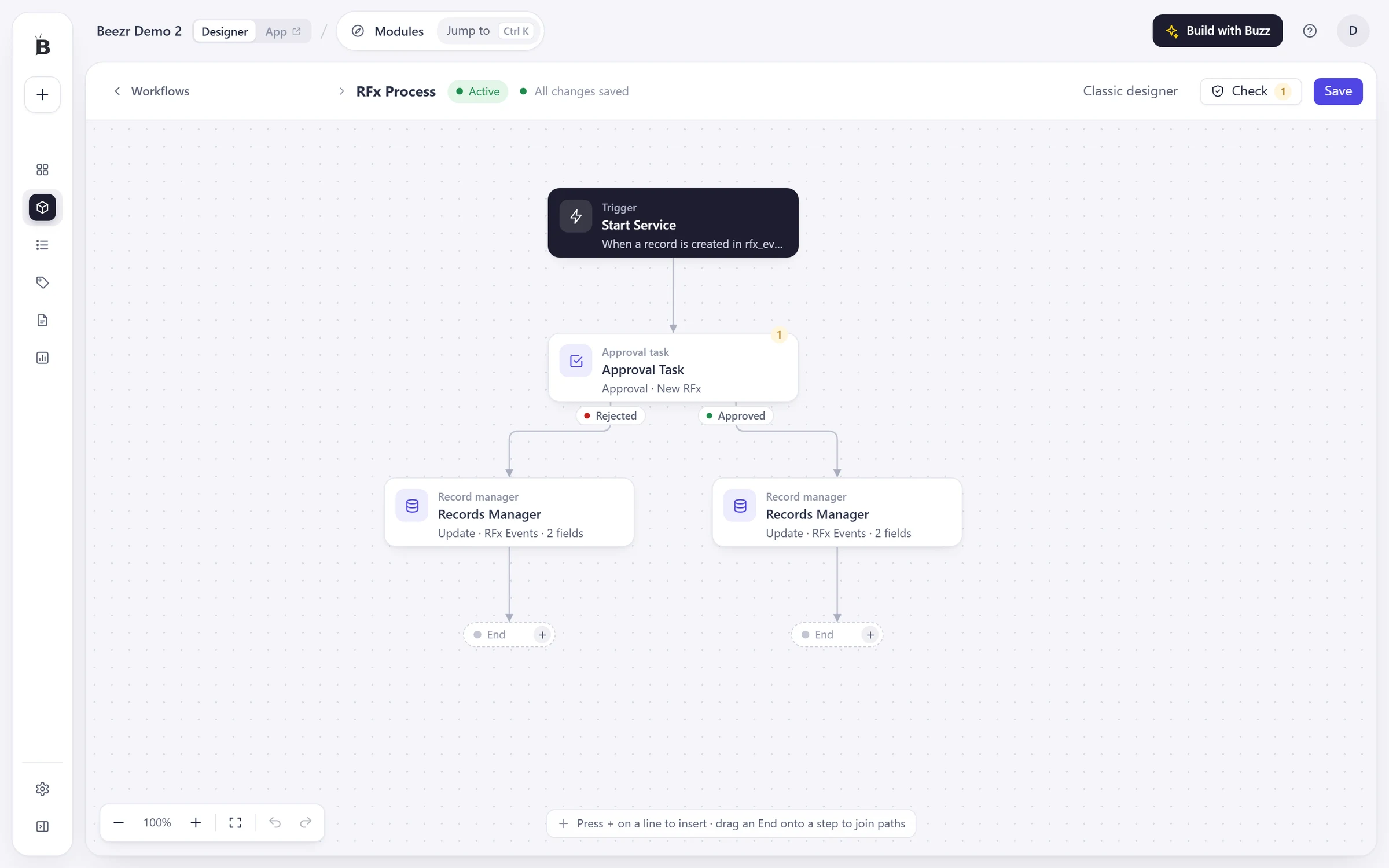
The RFx Process workflow in the Beezr Designer: a Start Service trigger, an approval task that branches on Rejected and Approved, and two records manager steps that update RFx events.
  1. 1
    Trigger

    The workflow starts when a record is created in the RFx events module.

  2. 2
    Approval task

    It waits for a person to approve or reject the new RFx.

  3. 3
    Two outcomes

    Rejected and Approved are separate branches, each with its own next step.

  4. 4
    Records manager

    It updates the RFx event, two fields, so the record always shows the outcome.

The RFx approval workflow in Vendor HUB. One drawing: what starts it, who decides and what changes in the record.

Every step you need

Sixteen step types in five groups cover the way real processes run: logic, records, communication, data and connections. Add one from the plus on any line of the canvas.

A step can be reached from several paths, a Loop repeats steps for each item in a list, and Beezr checks the workflow before it saves.

  • On the canvasAuto-layout, undo and redo, copy a step, zoom to fit.
  • JoinsSeveral paths can meet in one step.
  • ConnectREST API, Integration and Web agent steps reach other systems.
Search steps

Logic

DecisionSplit into Yes / No paths
LoopRepeat steps for each item
WaitPause for seconds, minutes or hours
TerminateStop the workflow with a response

Records

Record managerCreate, update or delete records
Load dataLoad records into a named list
Approval taskAsk someone to approve or reject

Communicate

Send emailEmail people, with templates
Smart documentGenerate a PDF or Word file

Data

JSON parserTurn JSON into usable data
CSV parserRead rows from a CSV file
Custom functionRun your own Smart Script
AI agentAsk an LLM, get text or JSON

Connect

REST APICall any HTTP endpoint
IntegrationRun an Integration hub actionPRO
Web agentAutomate a website in a browser
Recreated from the Designer for clarity

Approvals that match your hierarchy

An approval task pauses the workflow until someone decides. You choose who decides: named people, everyone in a role, a user field on the record, or a Smart Script that picks the person.

On the record, the assignee can approve, reject with a reason, ask for clarification, or send the request back to an earlier approval step. In the inbox they can claim a task that went to a group, or reassign it to someone else.

  • PriorityHigh, medium or low.
  • Overdue afterA number of days, counted from when the task is created.
  • RecordsSave the rejection reason, the assigned person or a stage on the record.
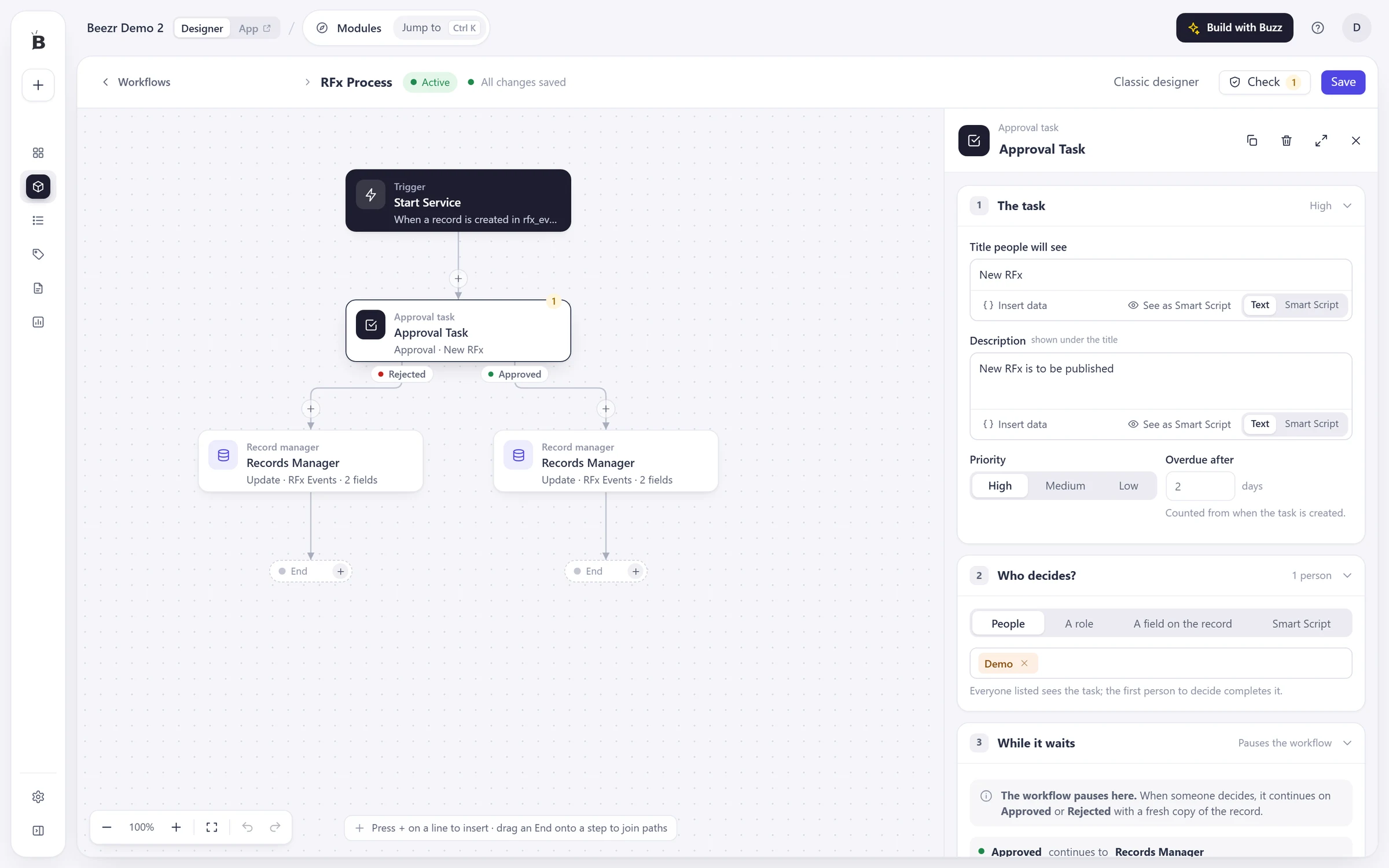
Designer · Workflows · RFx Process · Approval Task
The Approval Task selected in the Beezr workflow designer: the title New RFx, High priority, an overdue setting of two days, and the Who decides section with People, A role, A field on the record and Smart Script.
  1. 1
    The task

    A title people will see, a description, a priority and the number of days after which the task counts as overdue.

  2. 2
    Who decides?

    People, a role, a field on the record, or a Smart Script that picks the person. Everyone listed sees the task and the first to decide completes it.

  3. 3
    Approved and Rejected

    Each outcome continues to its own step, here a records manager.

What the approver sees on the record

App · A task opened on the record
A task opened on a record in the application: the Approve, Reject and Request Clarification buttons, with the task priority set to High.

Change the rule, not the application

A purchase order above a limit needs a second approval, from a director. When the limit changes, you open the workflow and change that one rule. Nothing else is rebuilt, and the next purchase order follows it.

Send a purchase order, then move the limit and send it again.

RequestTrigger
ApprovalApproval task
Over the limit?Decision · EGP 1,000,000NoYes
Purchase orderRecord manager
Director approvalApproval task

Send a purchase order to see where it goes.

Send a purchase order
Approval limitEGP 1,000,000

Illustration of a Beezr setup. Amounts are examples.

Deadlines and status

Set a service deadline for each state a record can be in, such as Under review. Beezr records the deadline on the record and tracks its status as the record moves from state to state.

Approval tasks carry their own overdue setting, so a late task shows in red in the task inbox.

  • Per stateA default deadline for each state of a lookup field.
  • Dynamic rulesConditions that override the default. The first match wins.
  • On the recordThe deadline and its status are stored for each record and state.
SLA Rules Manager
StatusSLA Active

State SLA targets

Set an SLA deadline for each lookup state. The timer starts the moment a record enters that state.

When state isUnder review
Default SLA2
 Days
Dynamic Rules

Rules are evaluated in order. The first match overrides the default SLA.

+ Add Rule

Recreated from the Designer for clarity. The state name is an example.

What starts a workflow

Six triggers: a record is created, updated, created or updated, or deleted; an Adhoc workflow started by a button or by another workflow; or a webhook, when another system calls a URL.

A record trigger can run after the save, or before it, where the workflow can check the record and stop the save.

  • Entrance criteriaConditions that decide which records start a run.
  • OrderWhen several workflows share a trigger, lower numbers run first.
  • ButtonsAn Adhoc workflow runs from a button on the record page.
Workflow settings

When should it run?

A record is createdEvery new record
A record is updatedEvery saved change
Created or updatedBoth of the above
A record is deletedBefore it is removed
AdhocStarted by a button or by another workflow
From a webhookAnother system calls a URL

Timing

After the record is saved (POST)The usual choice. The save never waits for the workflow.
Before the save, can stop it (PRE)Can check or change the record, and stop the save if it fails.
Recreated from the Designer for clarity

Where people pick up their work

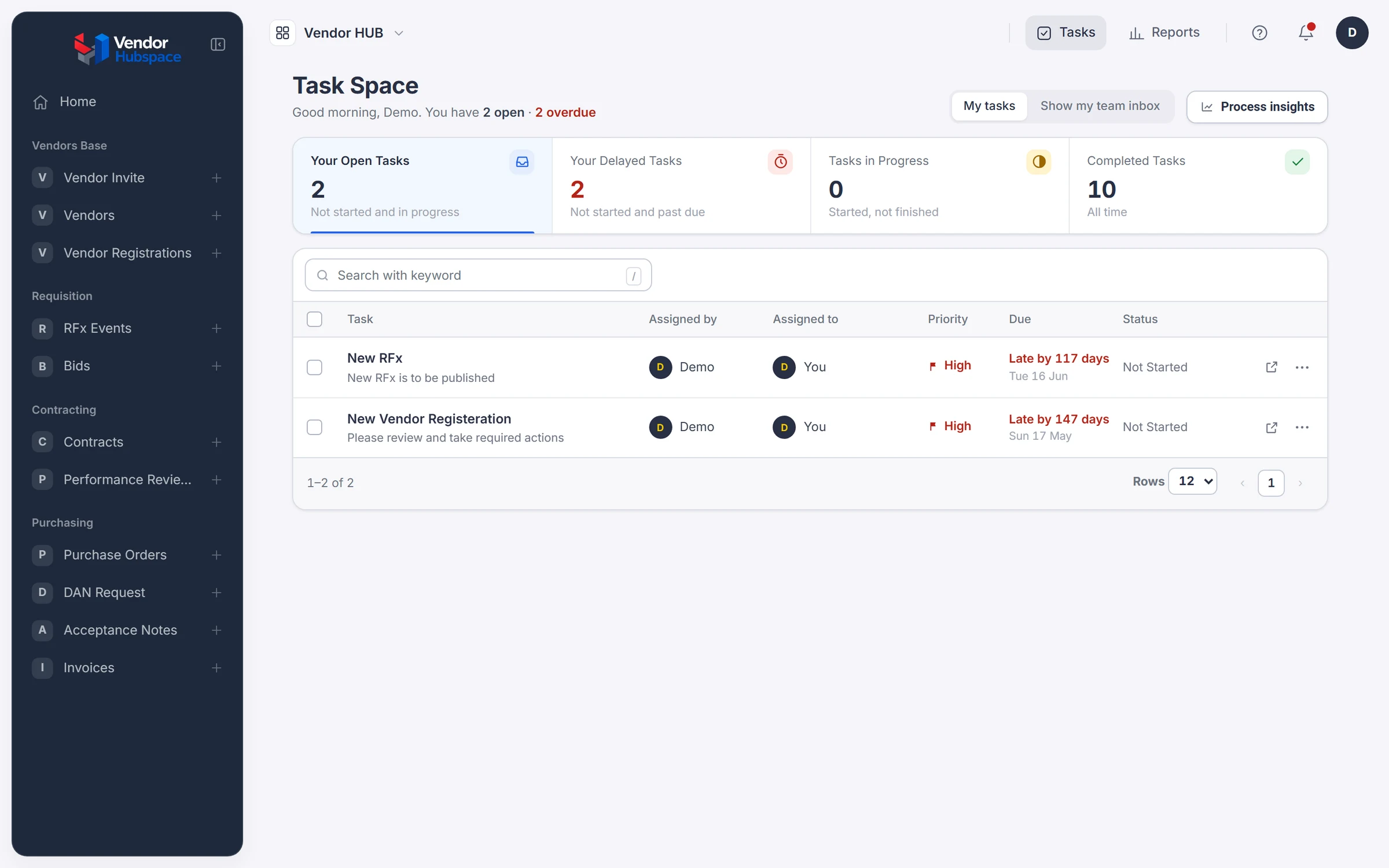
Task Space is the inbox. It counts open, delayed, in-progress and completed tasks, lists each with its priority and due date, and opens the record behind it.

Process insights shows how the process performs: lead time, the steps where requests wait longest and how requests move, over the last 30, 90, 180 or 365 days.

  • DecideApprove or reject, with a reason.
  • ClaimA task sent to a role or group is claimed by one person.
  • ReassignHand a task to another user.
Vendor HUB · Task Space
The Task Space in Vendor HUB: counters for open, delayed, in-progress and completed tasks, and two overdue high-priority tasks with their due dates, plus a Process insights button.
  1. 1
    Your counters

    Open, delayed, in-progress and completed tasks at a glance.

  2. 2
    My tasks and the team inbox

    Your own tasks, or the team inbox for tasks sent to a role or group.

  3. 3
    Priority and due date

    Each task shows its priority, its due date and how late it is, in red when it is overdue.

  4. 4
    Process insights

    Opens analytics for the process: lead time, bottleneck steps and how requests move.

See what ran, and why it failed

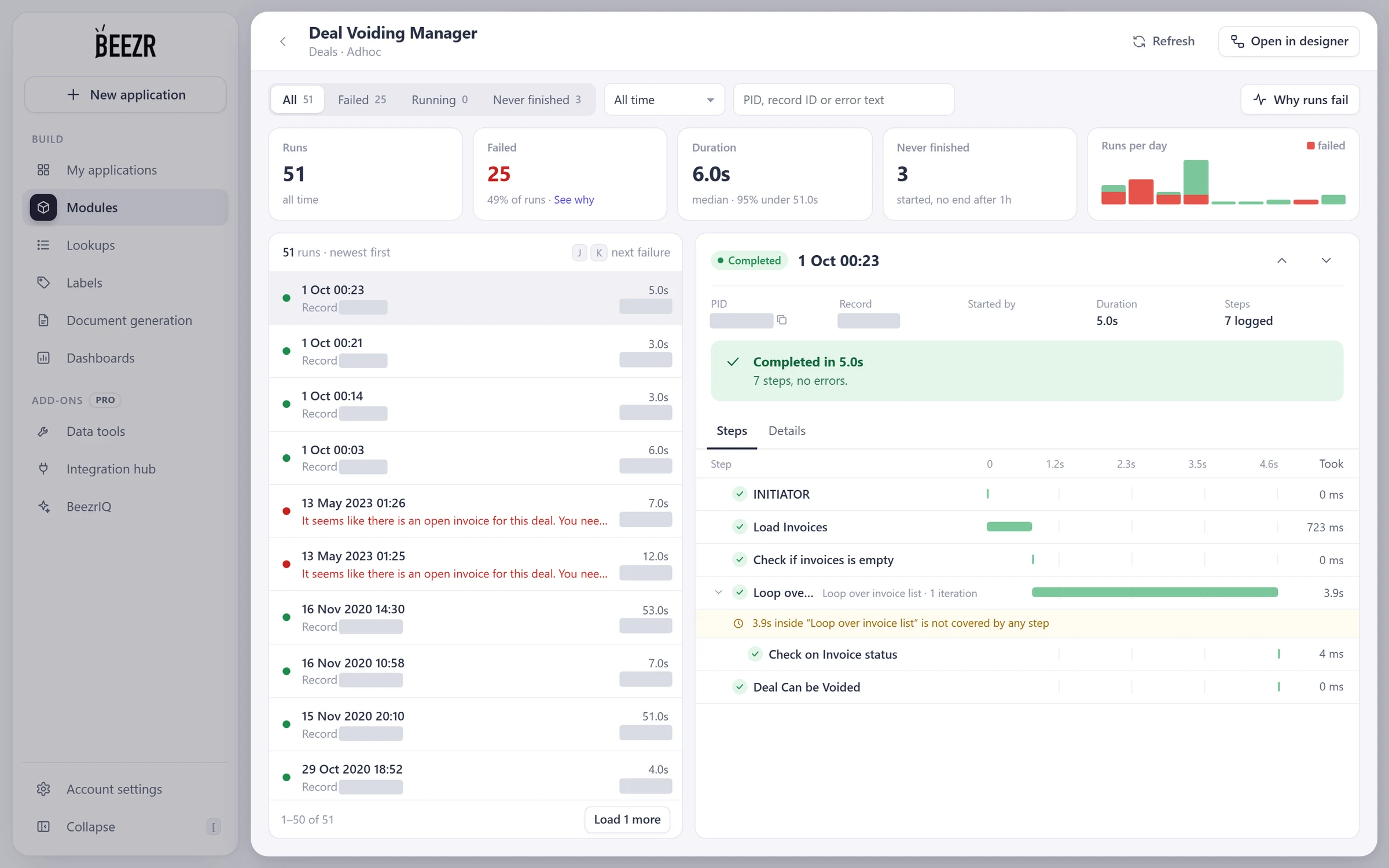
Every workflow keeps its run history. Open a run to see each step, how long it took and where it stopped. Filter to the failed runs and ask why runs fail.

The workflow list shows runs and failures for the last 14 days, so you can spot a process that starts failing.

  • Per runSteps, timing, errors and the record it ran on.
  • Per workflowRuns, failures, median duration and runs per day.
  • In the listRuns and failures over 14 days for every workflow.
Designer · Automation · Run history
The run history of a workflow in the Beezr Designer: counters for runs, failures, duration and never-finished runs, a list of runs, and the steps of the selected run with their timing.
  1. 1
    Filter the runs

    All, failed, running or never finished. Search by process, record or error text.

  2. 2
    Failures at a glance

    Runs, failures, median duration and runs per day, with a link to see why runs failed.

  3. 3
    Step by step

    Each step of the selected run and how long it took, including time that no step accounts for.

  4. 4
    Why runs fail

    Opens an analysis of why runs failed.

Watch an approval rule change

Open the approval step of a workflow, set its priority and when it goes overdue, then see the RFx events list in the application.

Designer · Workflow, then the RFx events list

How it connects

Workflows run on your records and are started from your screens. They reach other systems and AI through steps on the same canvas.

Data

A trigger starts on a record, and a records manager step creates, updates or deletes records in the modules you defined.

Data and interfaces
User interfaces

An Adhoc workflow runs from a button on the record page, and approvals reach people in the task inbox.

Data and interfaces
Integration

A REST API step, an Integration step or a Web agent step sits on the canvas next to approvals and record updates.

Integration
AI

An AI agent step reads a document or your records and hands its answer to the next step, where your checks and approvals still apply.

AI in workflows

In a customer’s words

The Beezr team met our expectations and helped make the transition smooth. The support personnel has been very helpful and always available when needed to help us to fix issues, useful system which help our clients to get the high quality and cost reduction which they need.

Photo of Waleed NimrWaleed NimrCOO

Questions people ask

Can I change a workflow once it is in use?

Yes. A workflow is a drawing in the Designer. You change a step and save, and the Designer checks the workflow first. To try a change before your users see it, work in the sandbox and promote it to production when you are ready, with a rollback if you need one.

What can start a workflow?

Six triggers: a record is created, updated, created or updated, or deleted; an Adhoc start from a button or another workflow; and a webhook from another system. Entrance criteria decide which records start a run, and a record trigger can run before or after the save.

Who can approve, and how is the approver chosen?

You choose per approval task: named people, everyone in a role, a user field on the record, or a Smart Script that picks the person. When a task goes to several people, the first to decide completes it.

Can an approver send a request back?

Yes. The assignee can send it back to an earlier approval step you choose, reject it with a reason, or reassign it to another user. The history on the record shows the steps, who acted and what was sent back.

What happens when an approval is overdue?

Each approval task has an overdue setting in days, and a late task shows in red in the task inbox. Service deadlines and their status are recorded on the record.

Can I see what a workflow did?

Yes. Run history lists every run with its steps, timings and errors, and you can filter to failed runs. The workflow list shows runs and failures for the last 14 days. Process insights shows lead time and the steps where requests wait.

Can a workflow call other systems?

Yes, with a REST API step, an Integration step for ready connectors, or a Web agent step for sites without an API. The Integration page shows each one.

Can I test a workflow before it goes live?

Build and try it in the sandbox, check the run history, then promote it to production. Sandbox promotion covers workflows, forms, modules, fields, lookups and smart views, and it can be rolled back.

Start with the problem in front of you.

Show us the process you are trying to improve. We will tell you whether Beezr looks like a fit and how we would approach it.

Next on the tour

Next: Integration

Connect the systems you already run, even the ones without an API.

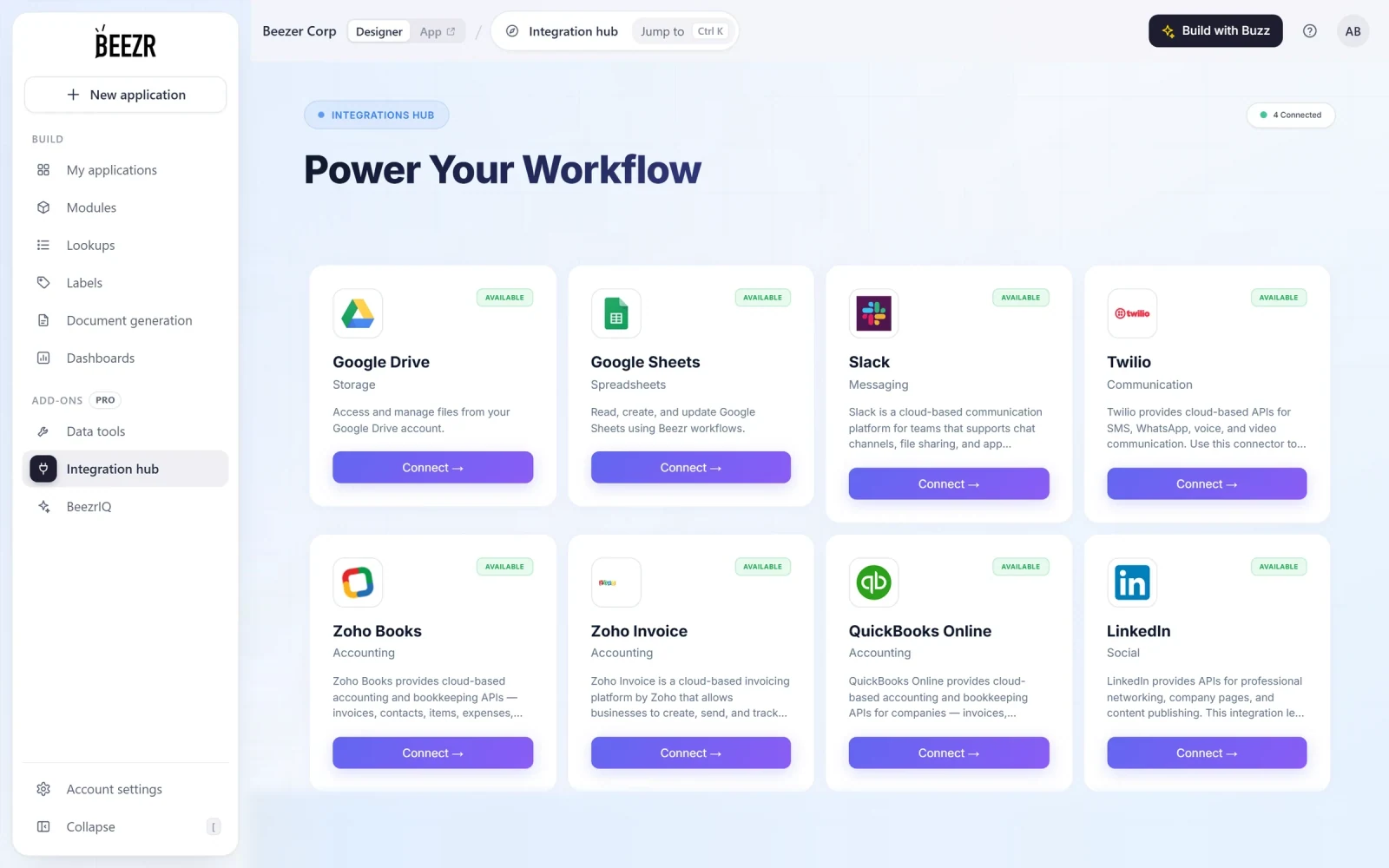
The Beezr Integration hub: connector cards for Google Drive, Google Sheets, Slack, Twilio, Zoho Books, Zoho Invoice, QuickBooks Online and LinkedIn.