Skip to content

Data and interfaces

Model how your business works. Give every team the screen it needs.

In Beezr you describe your business as records: suppliers, contracts, purchase orders, whatever you run on. Each record type gets fields, rules and relations, and every application that needs it uses the same records. On top of them you design the forms, lists, boards and record pages each team works in.

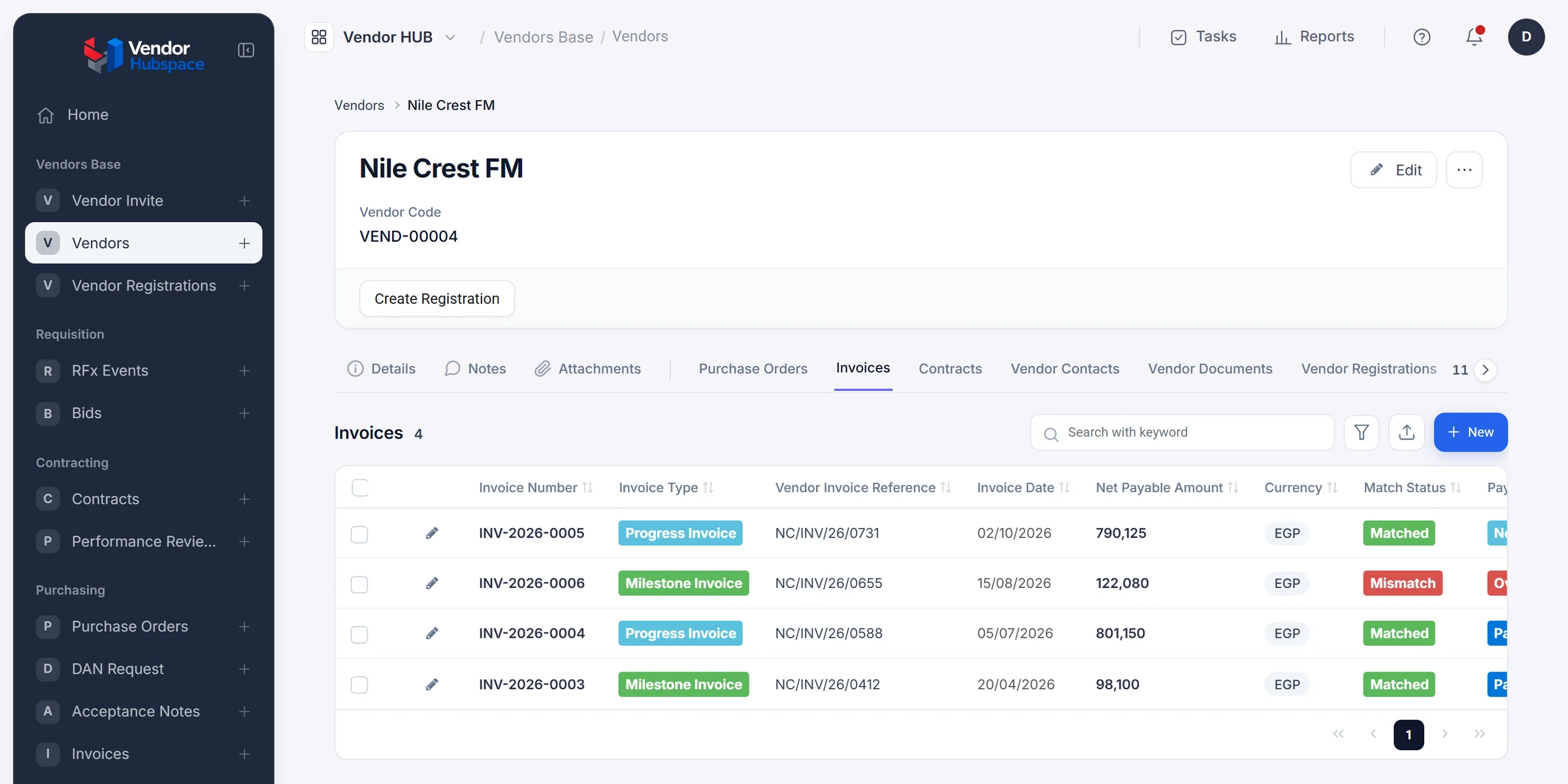
Vendor HUB · Vendor record
The Nile Crest FM vendor record in Vendor HUB, built on Beezr. Tabs for purchase orders, invoices, contracts, vendor contacts, vendor documents and vendor registrations, with the vendor’s four invoices listed on the Invoices tab.
  1. 1
    One vendor, one record

    Nile Crest FM is a single record. Its contracts, purchase orders and invoices point at it instead of copying it.

  2. 2
    Related tabs

    Each relation to another record type appears as a tab: purchase orders, invoices, contracts, contacts, documents.

  3. 3
    Their records, in place

    The invoices are records of the Invoices type, listed here with search and filter. New adds one from this page.

Records, and the fields that describe them

A supplier, a contract or a purchase order is a record type, which Beezr calls a module. Each one is a list of fields, and each field has a type. Pick from twenty. The type decides what people can enter, and how it looks on the page.

TypeSearch types

Text

TextA single line of text
Text areaLonger text
Rich textFormatted text with headings and lists

Numbers

IntegerWhole numbers
LongVery large whole numbers
DecimalNumbers with decimal places
CurrencyMoney, with a currency symbol

Dates

DateA calendar date
Date timeA date with a time

Smart

Smart fieldCalculated with a Smart Script

Choice

BooleanYes or no
LookupOne value from a list
Multi select lookupSeveral values from a list
RatingA star rating

Links

RelationA record in another module
UserA person in your workspace
LinkA web address

Files

ContentOne file or image
Multi contentSeveral files or images
SignatureA drawn signature
BarcodeA scannable code
Recreated from the Designer for clarity
  1. 1
    Type

    Every field has one. This one is a Lookup: one value from a list.

  2. 2
    Values come from

    A lookup field reads its choices from a list you maintain, shown further down.

  3. 3
    On the record page

    Show it in the record details, in the record header next to the title, or both, in the order you set.

  4. 4
    Encrypt values

    Store the field encrypted with a key you name. Part of Beezr Shield.
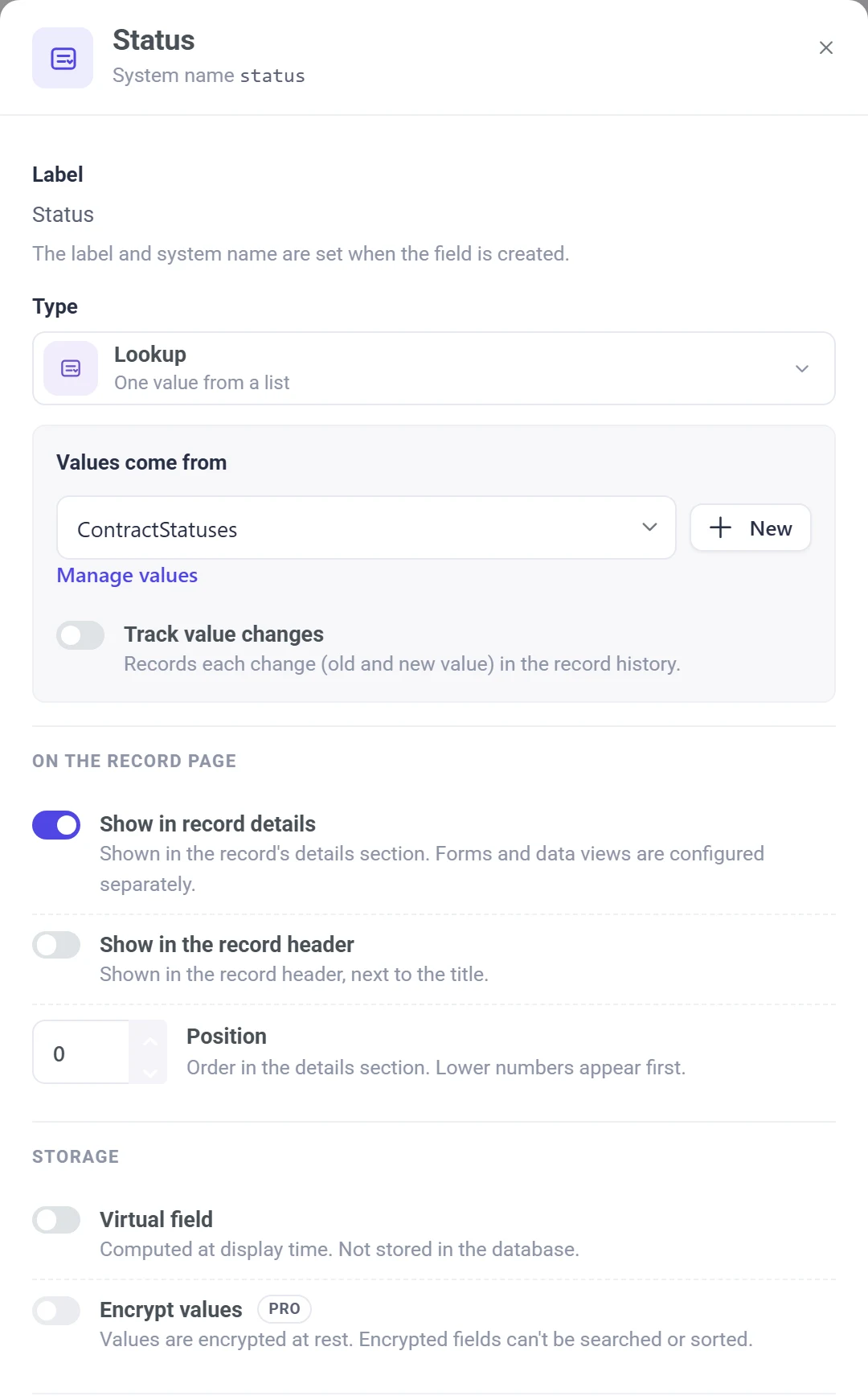
Designer · Fields · Status
The field editor in the Beezr Designer for the Status field of Contracts. Type: Lookup, one value from a list, with values from the ContractStatuses list. Below are the record page settings, a virtual field switch and the Encrypt values switch.

Relations, so a supplier is one supplier

Link a purchase order to its supplier and Beezr stores the relation between the records. A relation is one to one or one to many, and the record on the other side shows the link as a tab, as on the vendor record above.

Illustration of a Beezr setup.

  • One to manyOne supplier, many purchase orders, contracts or invoices.
  • One to oneEach record has at most one record on the other side.
  • Display fieldYou choose which field of the related record shows, such as its name.
Add a relation

Link records in this module to records in another module.

Vendors
Trade name
Shown wherever the relation appears, for example the customer’s name.
 
Leave empty to use the related module’s key field name.
CancelCreate relation
Recreated from the Designer for clarity. The Add a relation dialog on the Invoices fields page.

Lists you control

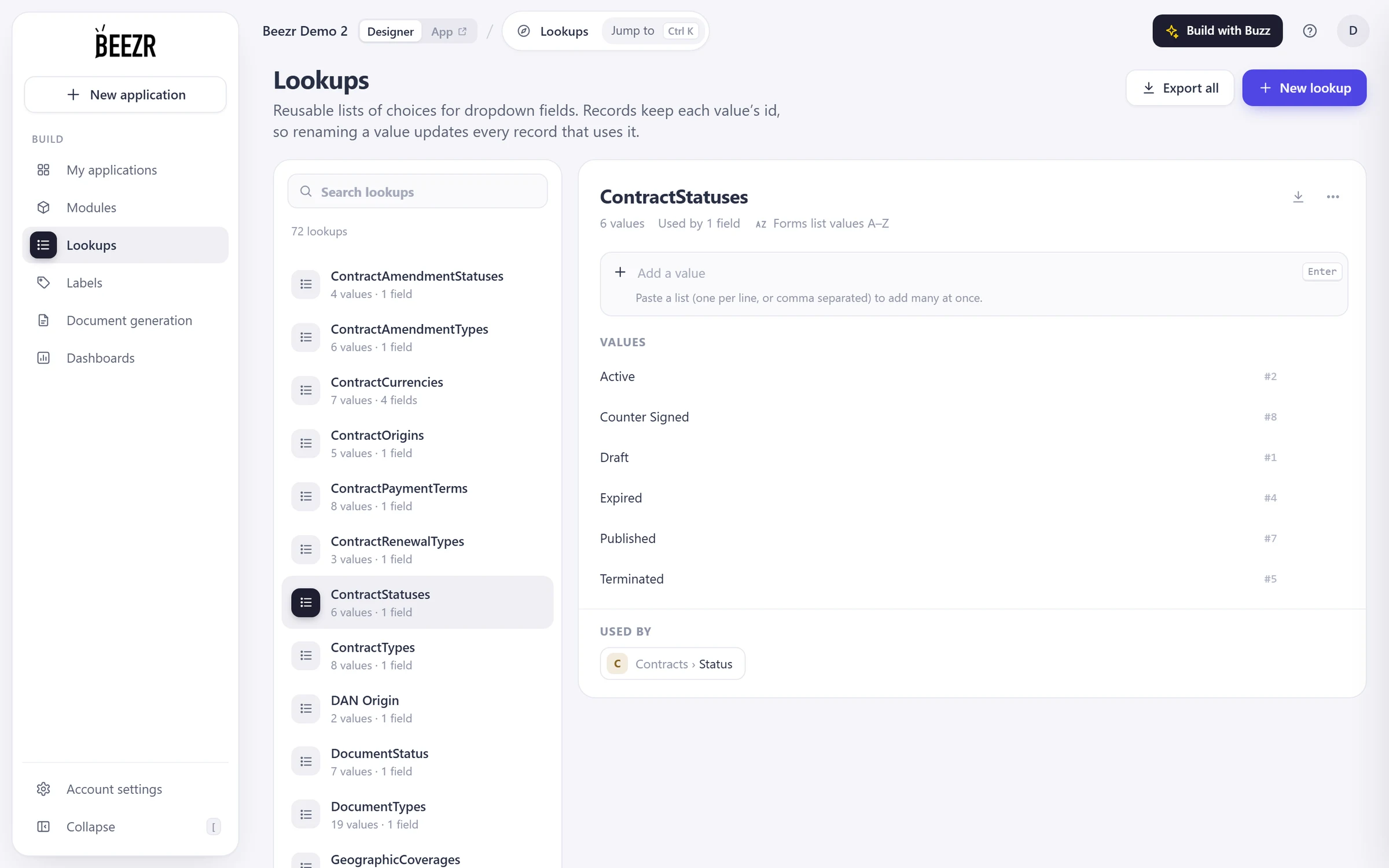
A lookup is a list of choices: contract statuses, currencies, payment terms. Define it once and every field that uses it offers the same values. Records keep each value’s id, so renaming a value updates every record that uses it.

  • Add many at oncePaste a list, one value per line or comma separated.
  • Used bySee which fields use a list before you change it.
  • Track changesSwitch it on for a lookup field and each change, old value and new, goes into the record history.
Designer · Lookups · ContractStatuses
The Lookups page of the Beezr Designer with the ContractStatuses list open: six values, Active, Counter Signed, Draft, Expired, Published and Terminated, an Add a value box, and the Contracts Status field listed under Used by.
  1. 1
    Add a value

    Type one and press Enter, or paste the whole list.

  2. 2
    Values and ids

    Each value has an id that records keep, which is why a rename reaches every record.

  3. 3
    Used by

    Contracts, Status. Here that is one field; a list can serve many.

Forms that follow your rules

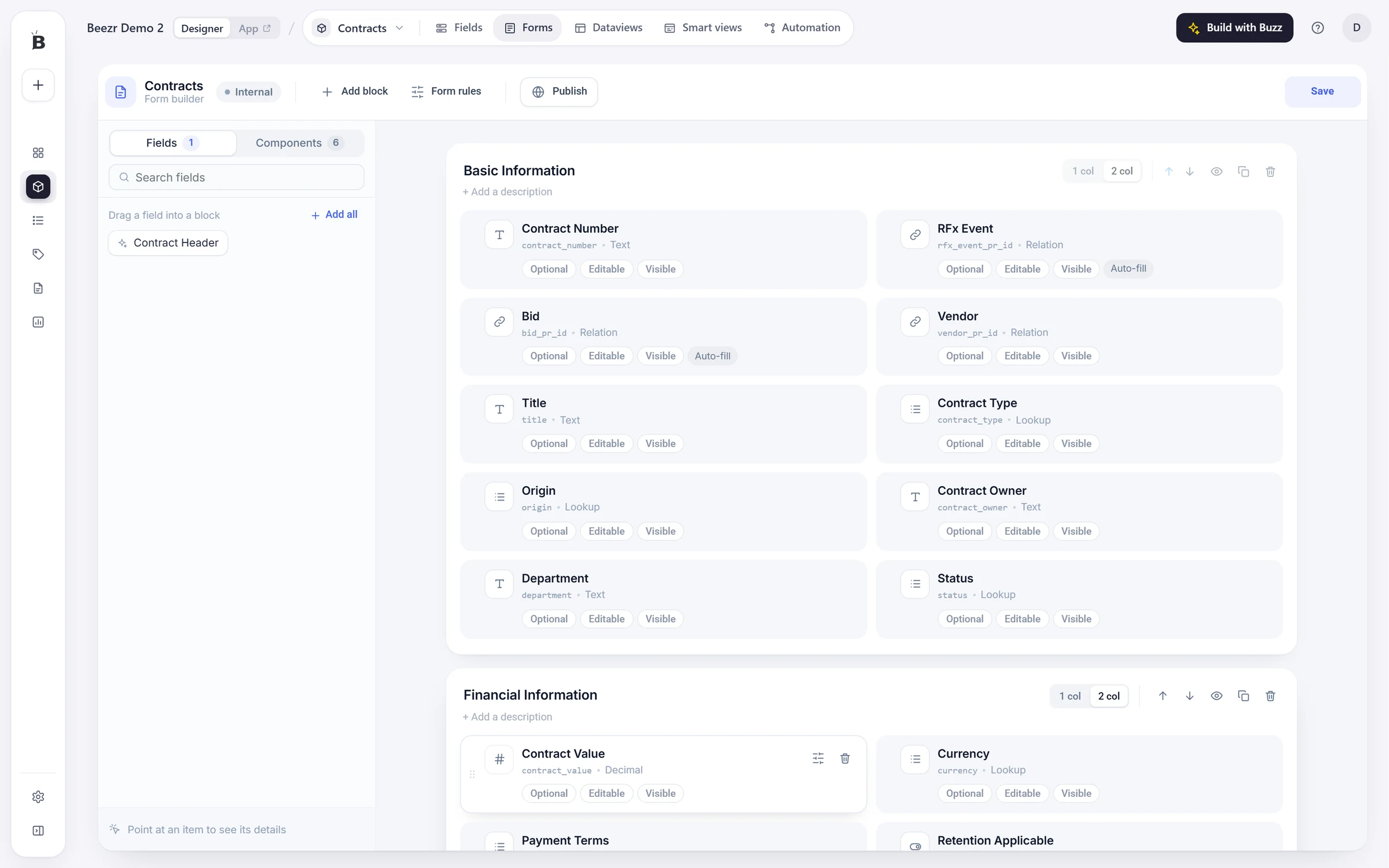
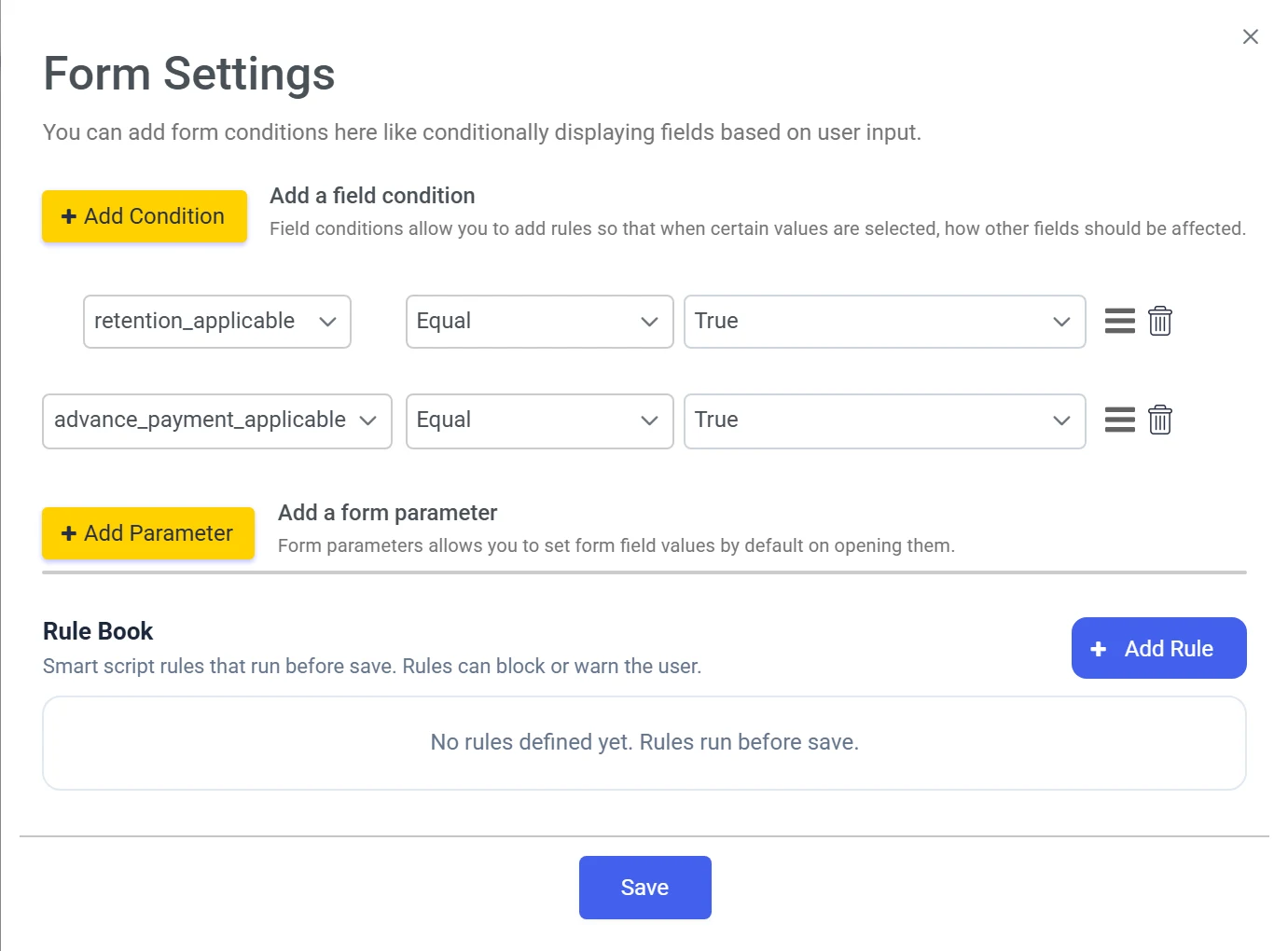
A form is the set of fields people fill in, grouped into blocks of one or two columns. Rules sit on top: show, hide or lock a field depending on another field, and run a Smart Script check before saving that either warns the person or stops them.

Designer · Forms · Contracts
The form builder for Contracts in the Beezr Designer. A palette of fields on the left, a Basic Information block with two columns of field cards, a Financial Information block below, and a toolbar with Add block, Form rules and Publish.
  1. 1
    Field palette

    Drag a field into a block, or add them all. Components such as a table, a button or custom HTML sit on the second tab.

  2. 2
    Blocks

    Group fields under a title, in one or two columns. Move, hide or copy a block.

  3. 3
    Field settings

    Select a field to set its width, its message, its default and whether it is read only.

  4. 4
    Form rules

    Opens the conditions and the rule book, shown on the right. Publish turns the form into a public link.

Designer · Form settings
The Form Settings panel in the Beezr Designer. Two field conditions, retention_applicable Equal True and advance_payment_applicable Equal True, an Add Parameter button, and a Rule Book of Smart Script rules that run before save, empty in this example.
  • Conditions. When a field has a value, make other fields visible, invisible, editable or read only. Combine conditions with AND and OR.
  • Rule book. A Smart Script check before save. Warning lets the person go on. Block stops them, with your message.
  • Public form. Anyone with the link can submit it. Share it as a link or a QR code.

What people fill in

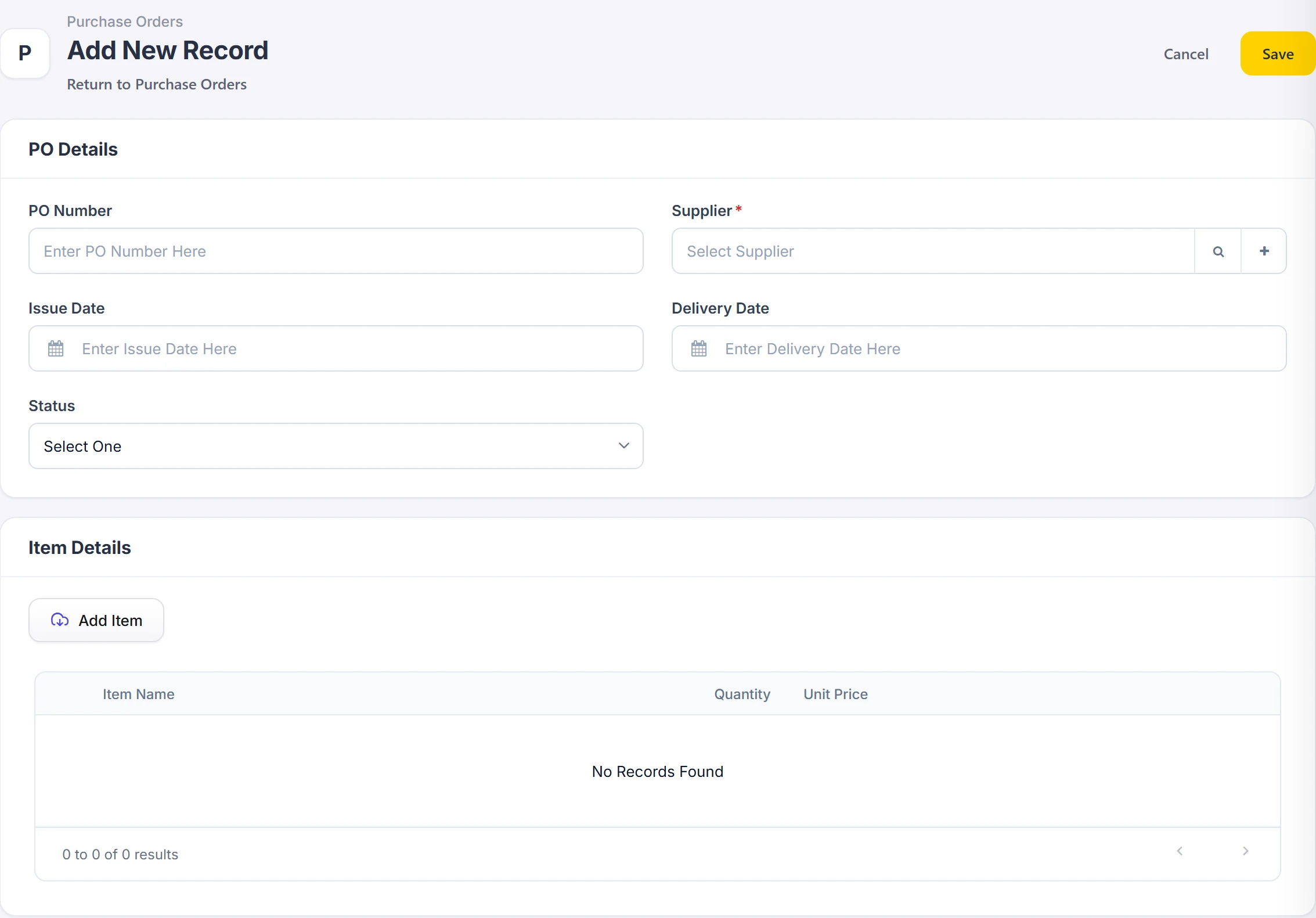
Application · New purchase order
The Add New Record form for a purchase order in a Beezr application. A PO Details block with PO number, a required Supplier field with search and add buttons, issue and delivery dates and a status, then an Item Details block with an Add Item button and an empty line items table.
  1. 1
    Required

    Supplier carries the red star. Fill it in before saving the form.

  2. 2
    A related record

    The Supplier field is a relation. Search the suppliers, or use + to add one.

  3. 3
    Line items

    A table holds the order lines, each with its own item, quantity and price.

Views for every way of working

The same records can be a table, a board, a calendar, a spreadsheet, cards, a list or a hierarchy. You switch each view on for a record type and choose its fields. People then switch between them with the tabs above the list.

Designer · Data views · Contracts
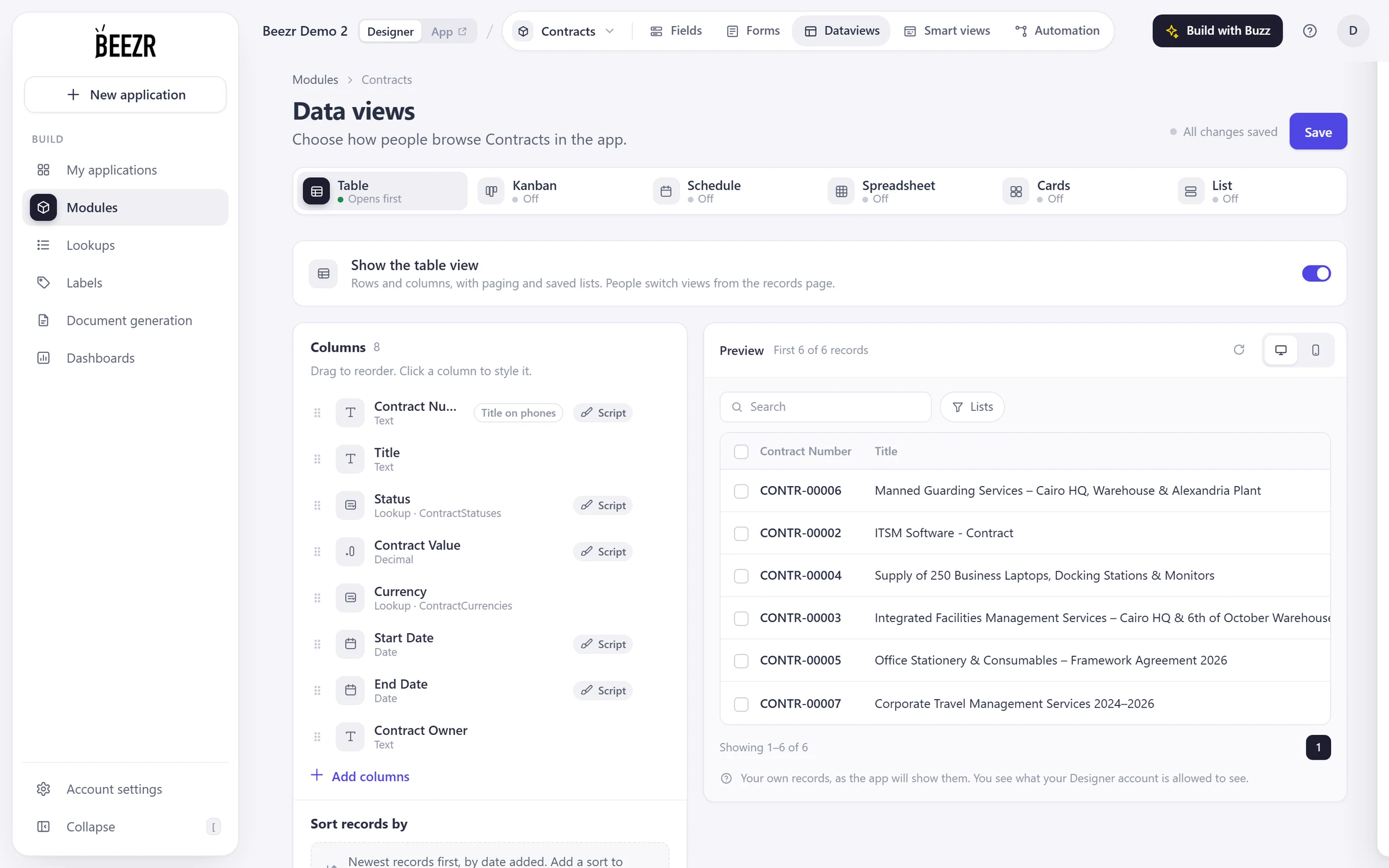
The Data views page for Contracts in the Beezr Designer. Tabs for Table, Kanban, Schedule, Spreadsheet, Cards and List, each with an on or off status, the Show the table view switch, a list of eight columns and a live preview of six contracts.
  1. 1
    Pick a view

    Each tab says whether the view is on. Table opens first.

  2. 2
    Switch it on

    Switch on a view to show it in the application.

  3. 3
    Live preview

    Your own records, as the application will show them.

What people see

Application · Deals as a board
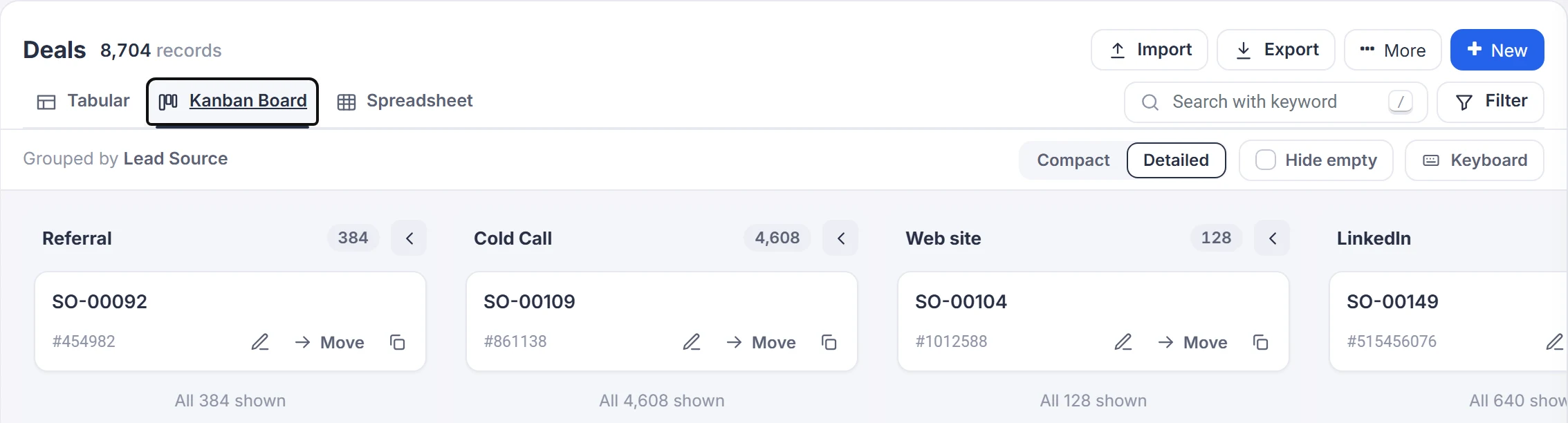
A list of deals in a Beezr application shown as a Kanban board grouped by lead source. The tabs read Tabular, Kanban Board and Spreadsheet. Each column shows its lead source and record count, with a card for each deal and Move, edit and copy actions.
  1. 1
    Switch views

    The views switched on appear as tabs above the list.

  2. 2
    Grouped by

    A board takes its columns from a lookup field. Here it is lead source.

  3. 3
    Move a card

    Each column counts its records. Drag a card to another column, or use Move.

Application · Invoices as a calendar
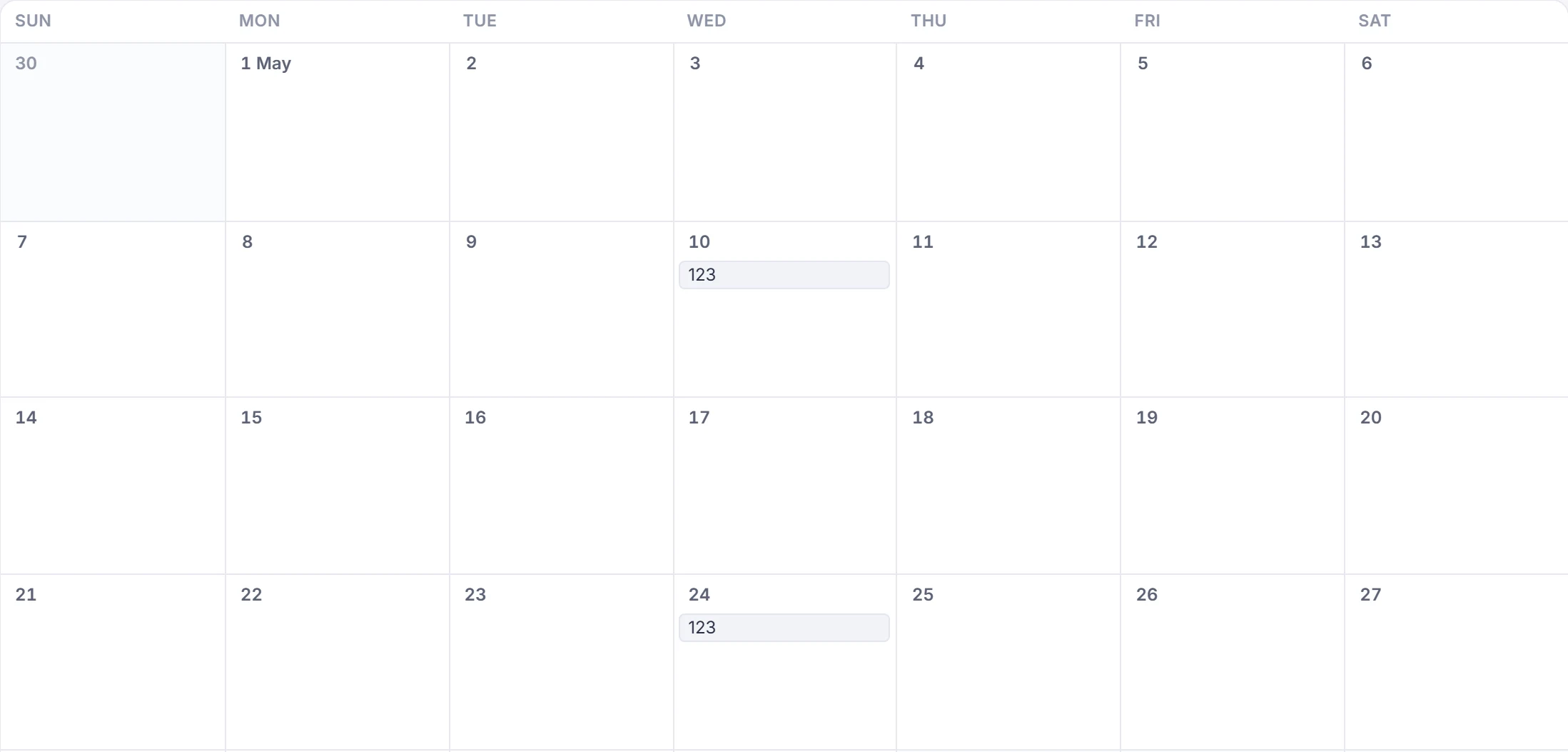
A month calendar in a Beezr application. Invoice records appear as entries on their dates, on the 10th and the 24th.
  1. 4
    Schedule

    Records sit on the date from their start field. Switch between month, week, day and list.

  • Table

    Rows and columns, with paging and saved lists. It opens first.

  • Kanban

    A board with a column for each value of a lookup field. Drag a card to move it.

  • Schedule

    A calendar from a title, a start and an end field, by month, week, day or list.

  • Spreadsheet

    A spreadsheet grid with fixed columns.

  • Cards

    A card for each record, with an image, the columns you pick and action buttons.

  • List

    A list with an image, grouped sections and action buttons.

  • Structured

    A hierarchy of records using parent and child identifiers.

The record page, designed and then used

Every record has a page: a header with the facts people need first, the buttons that act on it, and tabs for notes, attachments and related records. You lay it out by clicking the page itself. The team sees the result.

ConfigureThe record page, in the Designer

Designer · Smart view · Bids
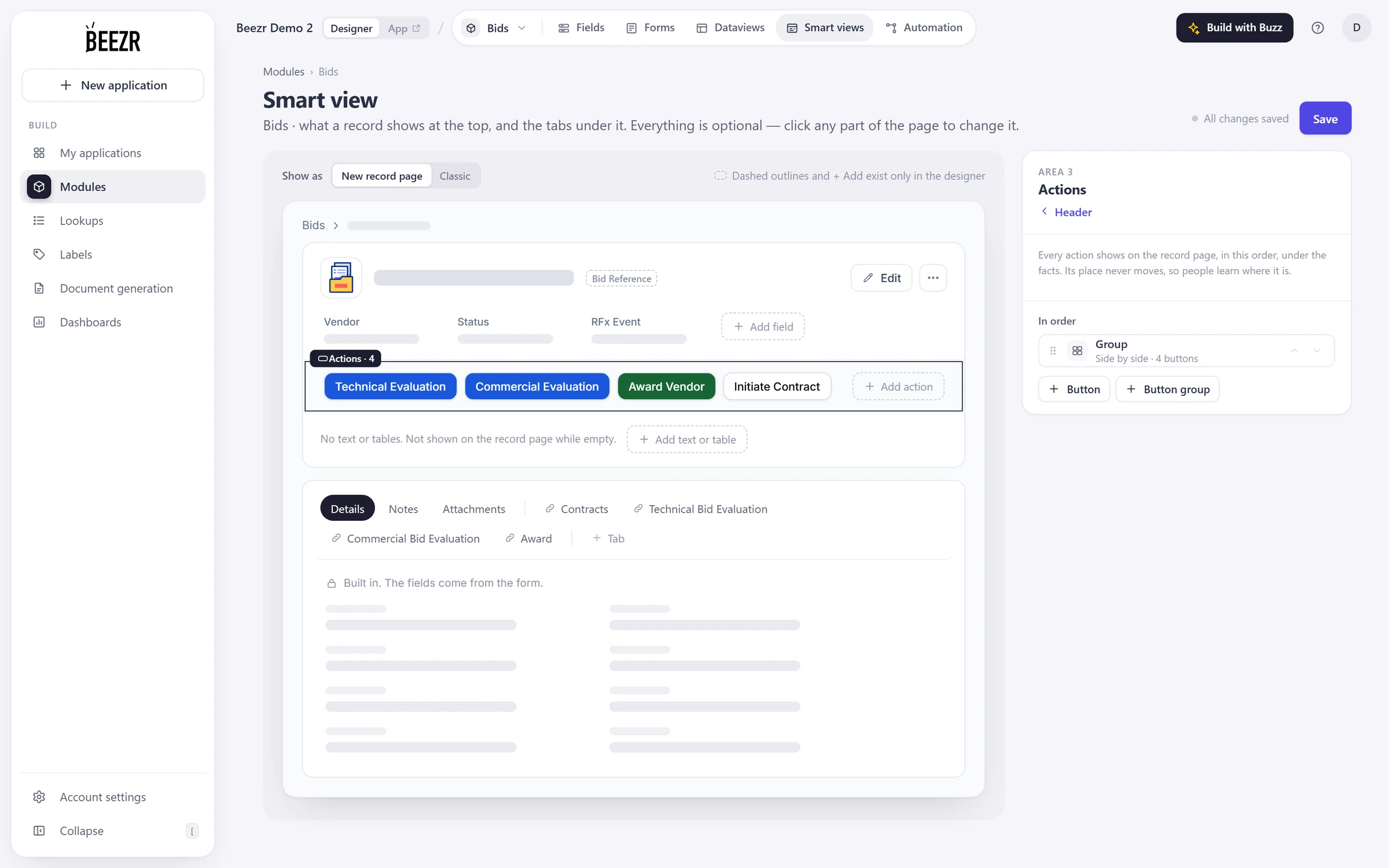
The smart view designer for Bids in the Beezr Designer. The record page layout with Vendor, Status and RFx Event under the title, the Actions group selected with four buttons, Technical Evaluation, Commercial Evaluation, Award Vendor and Initiate Contract, and tabs underneath.

SeeThe record your team uses

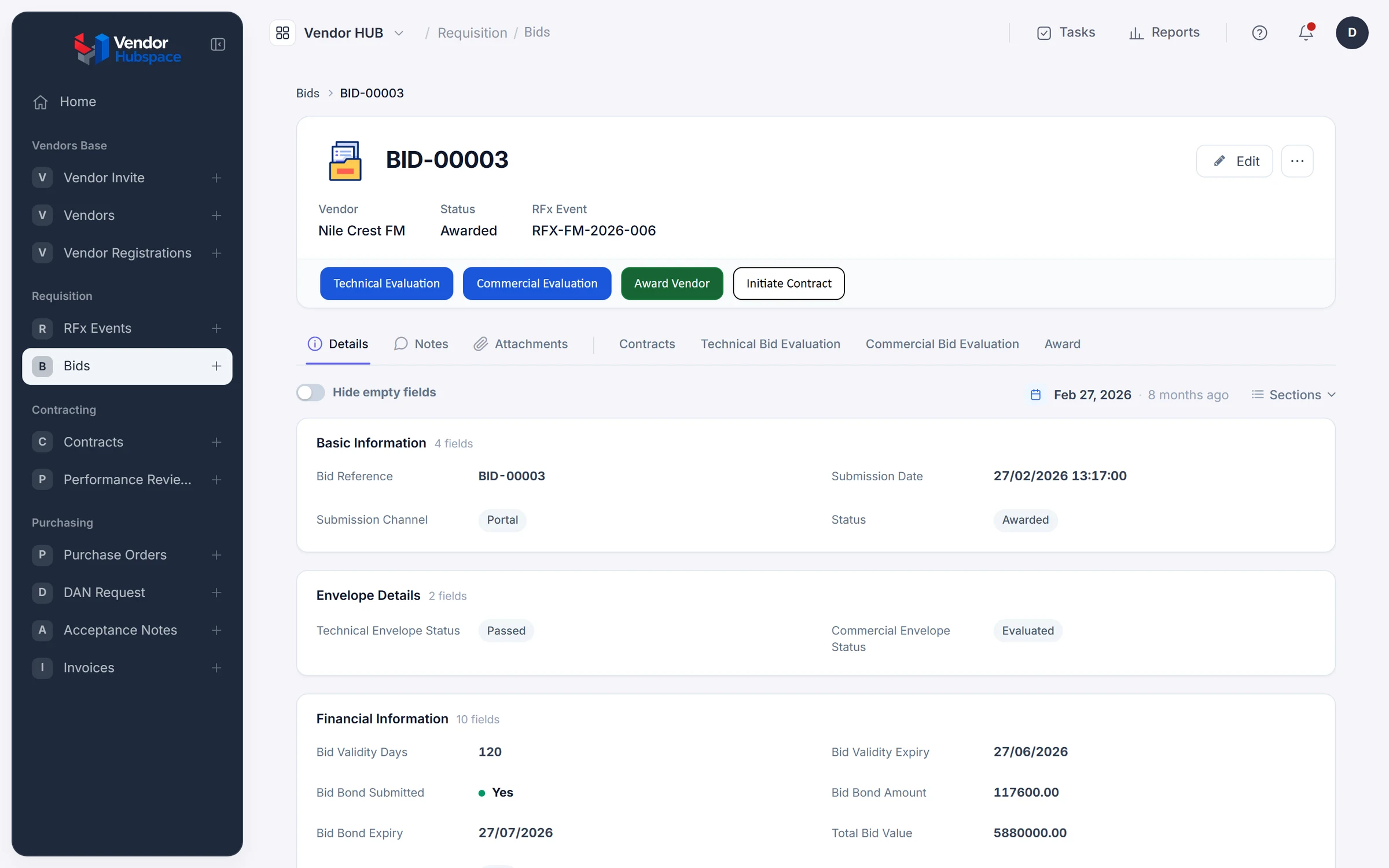
Vendor HUB · Bid BID-00003
Bid BID-00003 in Vendor HUB. Vendor Nile Crest FM, status Awarded and RFx event RFX-FM-2026-006 under the title, four action buttons, the tabs Details, Notes, Attachments, Contracts, Technical Bid Evaluation, Commercial Bid Evaluation and Award, and the Basic Information section.
  1. 1
    Header facts

    Choose the fields that sit under the title. Here: vendor, status and RFx event.

  2. 2
    Actions

    Buttons stay in the order you set, so people learn where they are. A button can start a workflow, open a form or a custom page.

  3. 3
    Related tabs

    One tab for each related record type, next to Details, Notes and Attachments.

In Arabic too

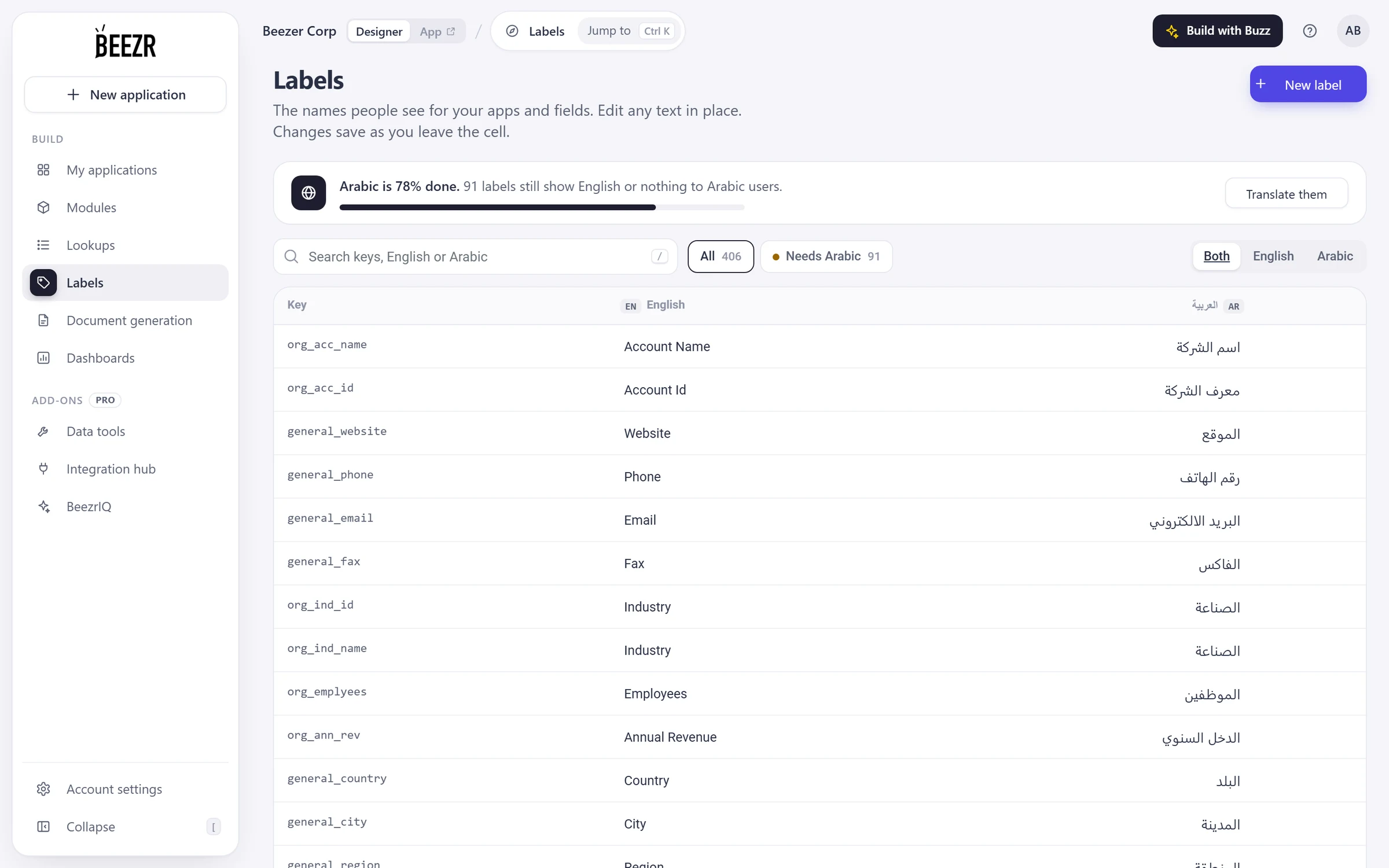
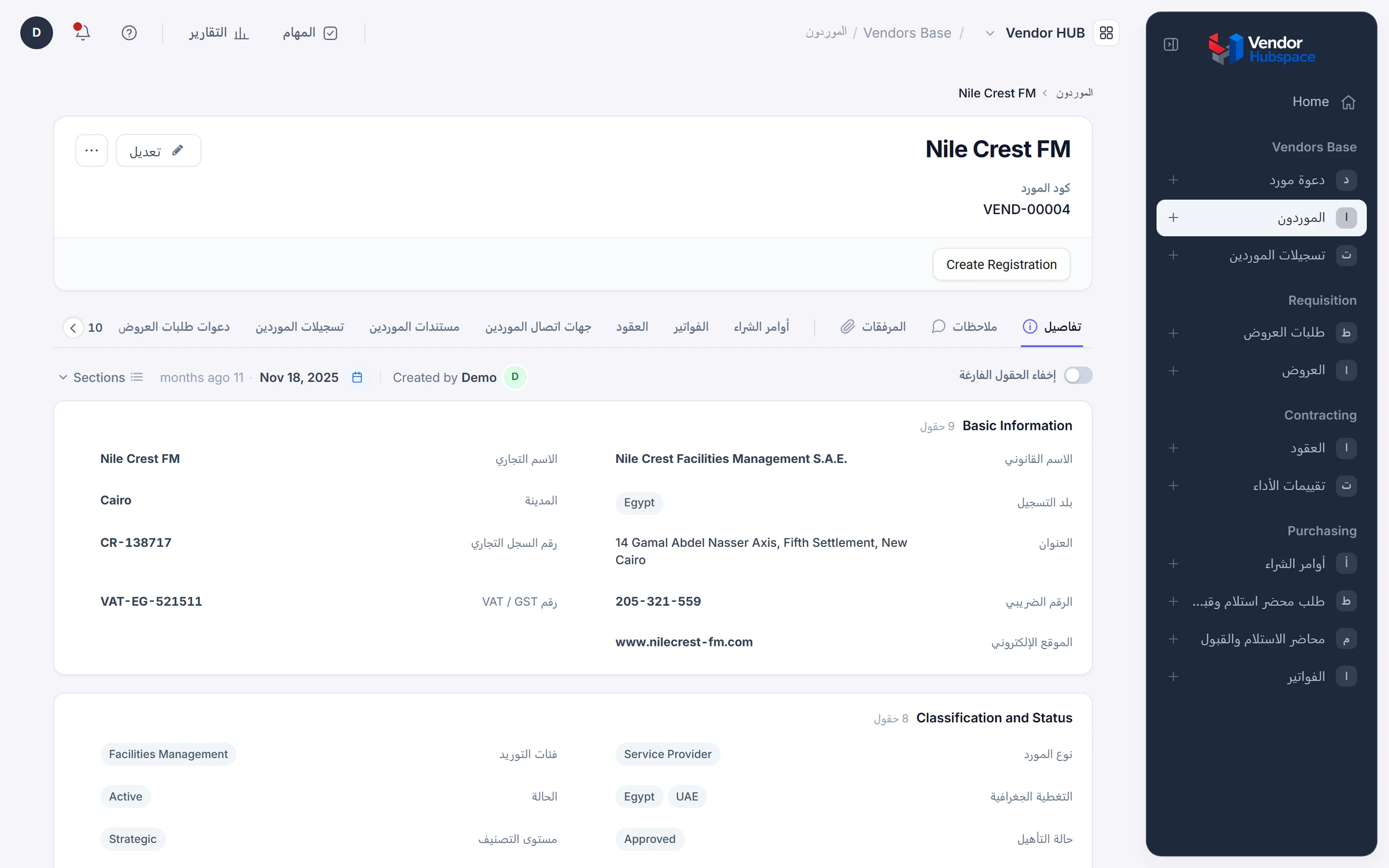
Beezr works in English and Arabic. Labels, the words people see for your applications and fields, are translated side by side on one page, with a count of what still needs Arabic. The application then mirrors to right to left.

ConfigureLabels, in English and Arabic

Designer · Labels
The Labels page in the Beezr Designer. A banner reads Arabic is 78 percent done, with a Needs Arabic filter, and a table of label keys with their English text and Arabic translation side by side.

SeeThe same record in Arabic

Vendor HUB · Vendor record, Arabic
The Nile Crest FM vendor record in Vendor HUB in Arabic. The layout is right to left with the menu on the right, the tabs and field labels in Arabic, and the values as they were entered.
  1. 1
    Needs Arabic

    A counter and a filter show the labels that are empty or still in English.

  2. 2
    Edit in place

    English and Arabic sit in one row. Click a cell, type, and it saves when you leave it.

  3. 3
    Right to left

    The menu moves to the right and the page reads from the right.

  4. 4
    Values as entered

    Labels are translated. What people type into a record, such as a vendor’s name, stays as typed.

Start from a spreadsheet

Import records into a record type from a file, or let Beezr build a whole application from an Excel workbook. Getting data out is as short.

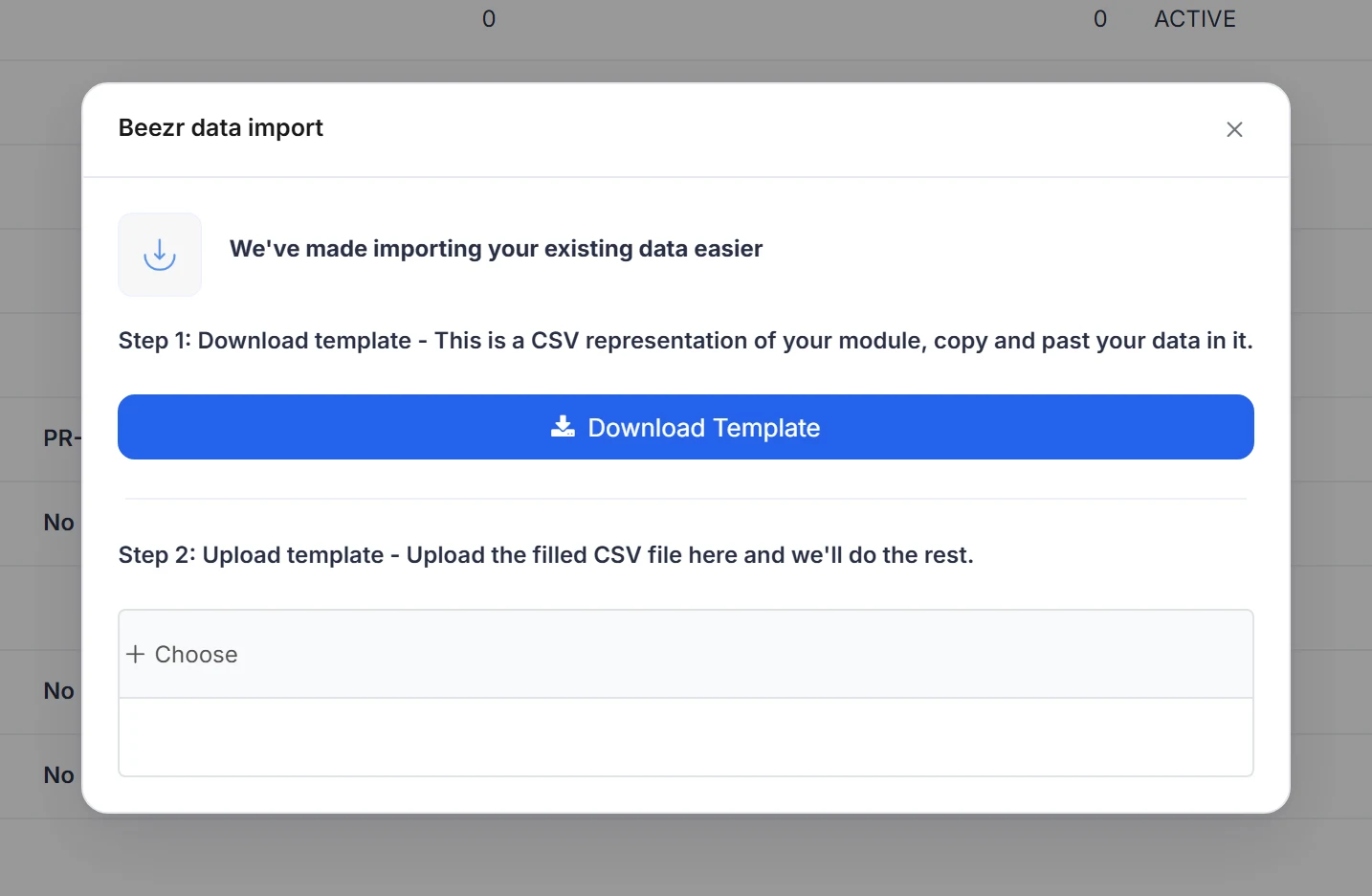
Application · Import
The Beezr data import dialog. Step 1: download a template, a CSV representation of your module. A Download Template button. Step 2: upload the filled CSV file, with a Choose button.
  1. 1
    Template

    A file with the columns of your record type. Fill it in.

  2. 2
    Upload

    Choose the filled file and Beezr does the rest. Import is in every list.

Application · Export
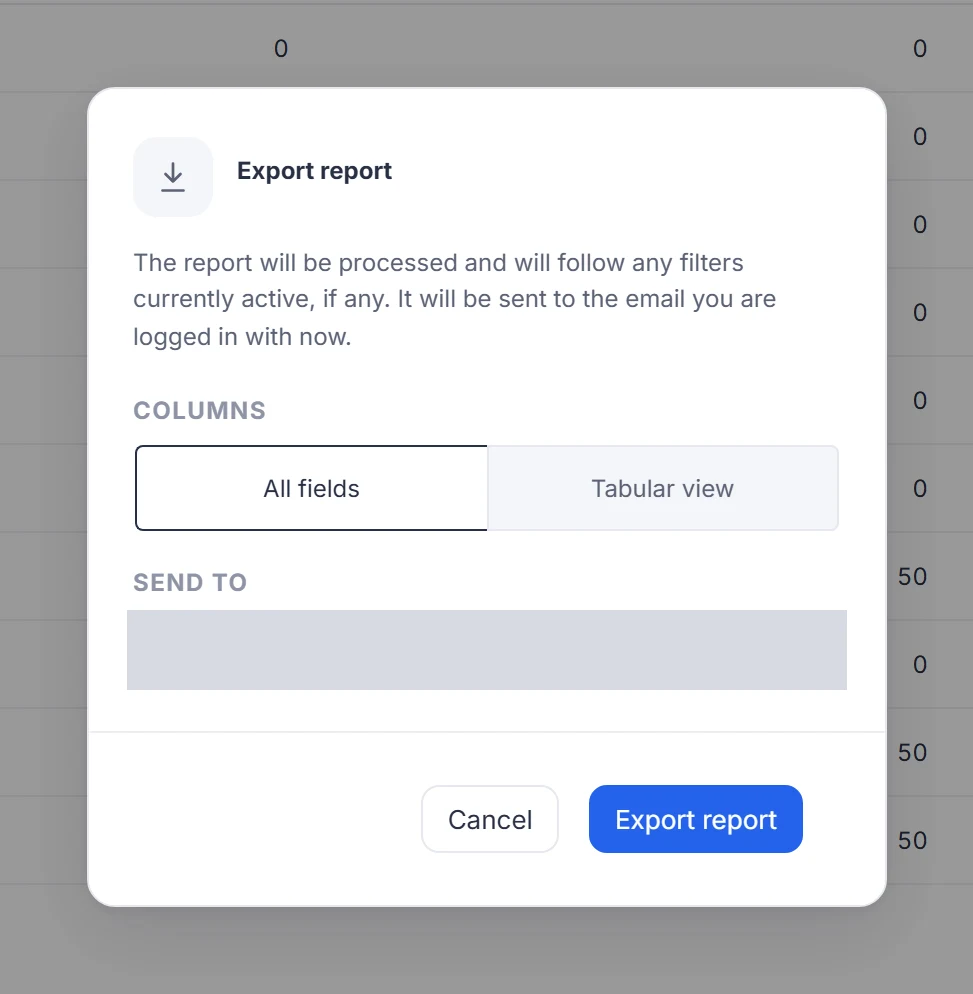
The Export report dialog. The report follows any filters currently active and is sent to the email you are logged in with. Columns: All fields or Tabular view. A Send to field and an Export report button.
  1. 3
    Columns

    All fields, or the columns of the current view.

  2. 4
    Sent by email

    The export follows the filters you have on and arrives by email as an Excel file.

Or build the application from the sheet

Sheet to App takes one Excel workbook (.xlsx). Each worksheet becomes a module and each column header a field. You review the fields and add relations before it builds the application, its forms and a list view.

Sheet to App
  1. WelcomeGet started
  2. UploadAdd your file
  3. SheetsChoose modules
  4. FieldsConfigure data
  5. RelationsLink modules
  6. BuildCreate app
Recreated from the Designer for clarity. The steps of the Sheet to App wizard.

Watch a record type take shape

Three short recordings from the Designer and from the application it produces.

Designer · Fields · Contracts
Designer · Smart view · Bids
Vendor HUB · Vendor record

The fields of Contracts, each with a type. Open one to set where it shows on the record page.

The record page of Bids, laid out by clicking the page. Select the Actions group to change its buttons.

The result for a vendor: the record, and the contracts, purchase orders and invoices that point at it, on tabs.

How it connects

Records are the foundation, so every other part reads and writes the same ones.

Workflows

A workflow starts when a record is created or changed, and its steps read and write these same records. Buttons on the record page start workflows.

Workflows and approvals
Reports

Reports read these records, including fields from related records, so a report can group by a supplier’s name.

Reports and dashboards
Security

Permission profiles decide which modules, which records and which fields on forms each role can use.

Security and governance
For developers

Smart fields, default values and form rules are written in Smart Script.

For developers

In a customer’s words

We didn’t have an automated system that can link the Sales with Production and with Inventory. All divisions were working manually to integrate with each other. Beezr helped us in automation of sales and purchase orders with production. We can generate reports with one click.

Photo of Rakhi BarthwalRakhi BarthwalProcurement Manager

Questions people ask

What is a module?

A module is a record type: suppliers, contracts, purchase orders. It holds the fields, the relations and the rules for that type of record. Every application that needs it uses the same module, so a supplier exists once.

How many field types are there?

Twenty you can pick: text, text area, rich text, integer, long, decimal, currency, date, date time, boolean, lookup, multi select lookup, rating, user, link, content, multi content, signature, barcode and smart field. Relations are added separately, from the Relation button on the Fields page.

Can two applications use the same records?

Yes. An application is a menu and a set of screens over shared modules. Purchasing and Inventory can both use the same Suppliers and Purchase orders, and each adds what is new.

Can people see records as a board or a calendar?

Yes. Beezr has seven views: table, kanban, schedule (a calendar), spreadsheet, cards, list and structured (a hierarchy). You switch each one on for a record type. A board is driven by a lookup field, and a calendar by a title, a start and an end field.

What can a form check before it saves?

Conditions can show, hide or lock fields depending on other fields. The rule book runs Smart Script checks before save, and each rule either warns the person, who can go on, or blocks the save and shows your message.

Can I start from a spreadsheet?

Two ways. Import records into an existing record type from a .csv, .xlsx or .xls file, from any list. Or use Sheet to App, which builds an application from an Excel workbook, with a module for each worksheet. You review the fields and add relations before it builds.

Does it work in Arabic?

Yes. Beezr works in English and Arabic. The Labels page holds both languages side by side with a count of what still needs Arabic, and the application mirrors to right to left.

Start with the problem in front of you.

Show us the process you are trying to improve. We will tell you whether Beezr looks like a fit and how we would approach it.

Next on the tour

Next: Workflows and approvals

Draw how work moves, who approves and what changes in the record.

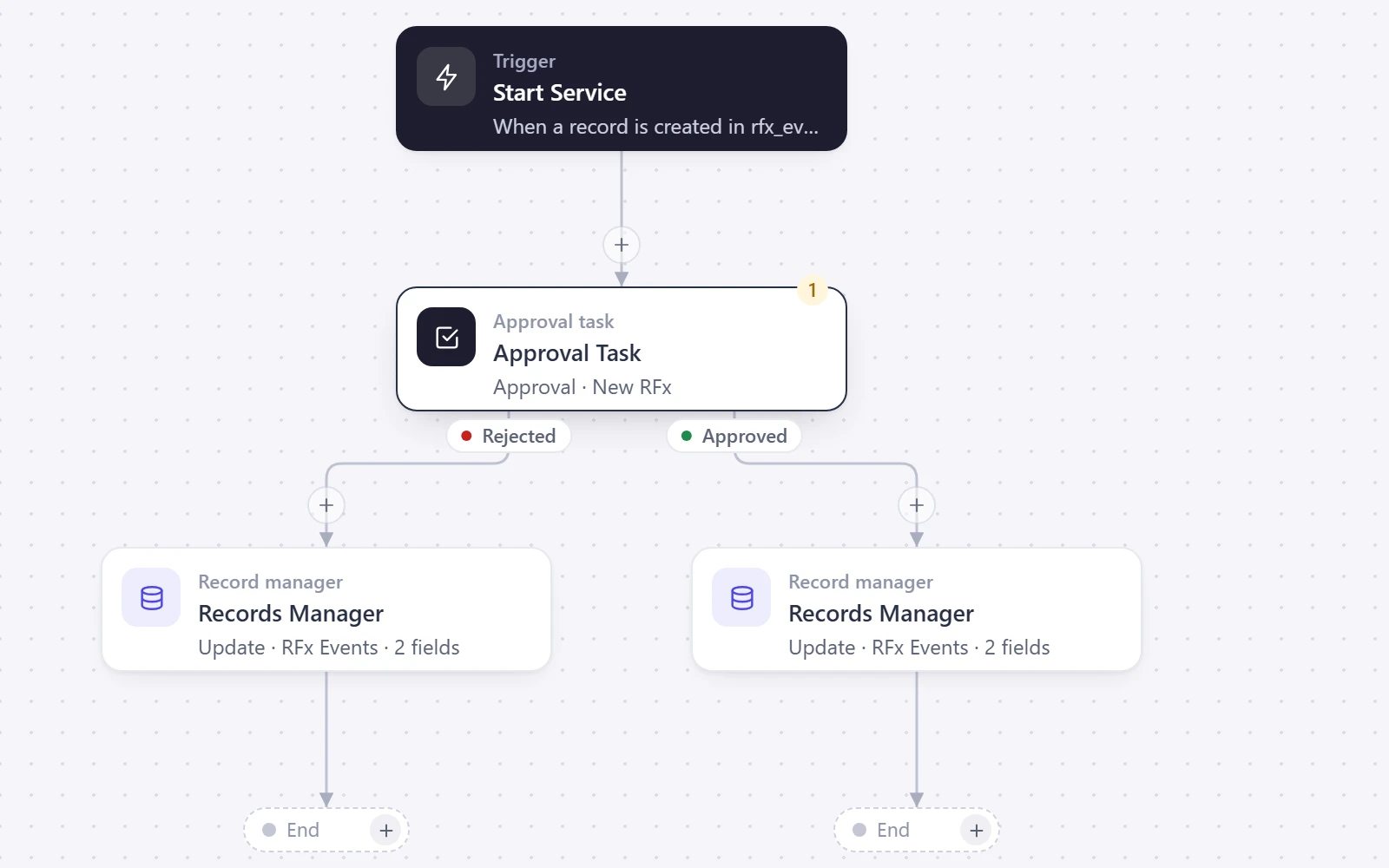
The RFx Process workflow: a trigger, an approval task that branches on approved and rejected, and two records manager steps.